Free guide from AsanReview
How to get your Google review link
The Google review link opens the "write a review" box for your business directly. Here are three ways to get it.
Updated 19 November 2026Free plan, no cardJazzCash · EasypaisaRoman Urdu · Urdu · English
To get your Google review link, sign in to the Google account that manages your Business Profile, search for your business name on Google, and choose "Ask for reviews" (or "Get more reviews"). Google shows a short link that starts with https://g.page/r/ and ends with /review. Copy it and share it with customers.
Step by step
- Sign inSign in to the Google account that owns or manages your Google Business Profile.
- Find your profileSearch for your exact business name on Google, or open the Google Maps app and tap your business.
- Open "Ask for reviews"In the profile panel choose "Ask for reviews" or "Get more reviews". On some screens it is under "Read reviews".
- Copy the linkCopy the link Google shows. It looks like https://g.page/r/XXXXXXXX/review.
- Share itSend it to customers on WhatsApp, or paste it into AsanReview when you sign up.
Method 2: build the link from your Place ID
Every business on Google Maps has a Place ID. If you know it, your review link is https://search.google.com/local/writereview?placeid= followed by the Place ID. You can find the Place ID with Google's Place ID Finder.
Method 3: from Google Maps on your phone
Open your business in the Google Maps app, tap "Reviews", then use the share option to copy a link to the profile. This link opens the profile, not the review box, so use the "Ask for reviews" link when you can.
What to do with the link
- Send it on WhatsApp right after a visit or sale.
- Print it as a QR code for the counter.
- Never offer a discount or gift for a review: Google removes such reviews and can restrict the profile.
Why the direct link matters so much
Asking a customer to "search for us on Google and leave a review" sounds simple and almost never works. They have to open Google, type your name, find the right listing among similar ones, scroll to the reviews, find the button and then write. Each step loses people.
The review link removes every step except the last. One tap and the star box is on the screen with your business already selected. If you do only one thing after reading this guide, make it this: stop asking people to search for you, and send the link.
Before you start: is your profile verified?
The "Ask for reviews" option only appears for a verified Google Business Profile that you manage. If you search your business name while signed in and see "Own this business?" or "Claim this business", you have not claimed it yet. Claim it and complete Google's verification first. Depending on the business this is done by video, phone, email or a postcard with a code.
If someone else set the profile up years ago, such as a former employee or a web designer, ask them to add you as an owner. If you cannot reach them, Google has a process for requesting ownership of a profile.
Finding it on a phone
- Open the Google Maps app and make sure you are signed in to the account that manages the business.
- Tap your profile picture, then "Your Business Profile".
- Look for "Ask for reviews" or "Get more reviews" among the buttons under the business name. You may need to swipe the row of buttons sideways.
- Tap it. Google shows the link with options to copy it or share it straight to WhatsApp.
What the link should look like
A genuine review link from Google normally starts with https://g.page/r/ followed by a code and ends in /review. The Place ID version starts with https://search.google.com/local/writereview?placeid=. Both open the review box directly.
A link that starts with maps.app.goo.gl or google.com/maps/place opens your profile page instead. Customers can still review from there, but it is an extra tap, and fewer will finish. If that is the only link you have, use it for now and replace it once you find the proper one.
Test it before you send it to anyone
Open the link on a phone where you are signed in to a personal Google account, not the business one. You should see your business name and five empty stars. Do not actually review your own business, because that breaks Google's rules. Just close the page once you have confirmed it opens correctly. It is worth checking on a second phone as well.
Turning the link into a QR code
A QR code at the counter or on the bill lets walk-in customers review without giving their number. Any free QR generator will turn the link into an image you can print. Put a short line beside it, such as "Scan to review us on Google". QR codes work best as a back-up to asking in person; a printed code that nobody mentions is easy to ignore.
Common problems and what they mean
- The link opens the profile, not the review box: you copied the share link. Go back and use "Ask for reviews".
- The link opens a different business: you have two listings with similar names. Find the duplicate and ask Google to merge or remove it.
- Customers say they cannot post: they are not signed in to a Google account, or they are using a work account that blocks reviews.
- A customer's review does not appear: Google filters some reviews automatically. It can take a few days, and some never show. This is normal and outside your control.
Where the link goes in AsanReview
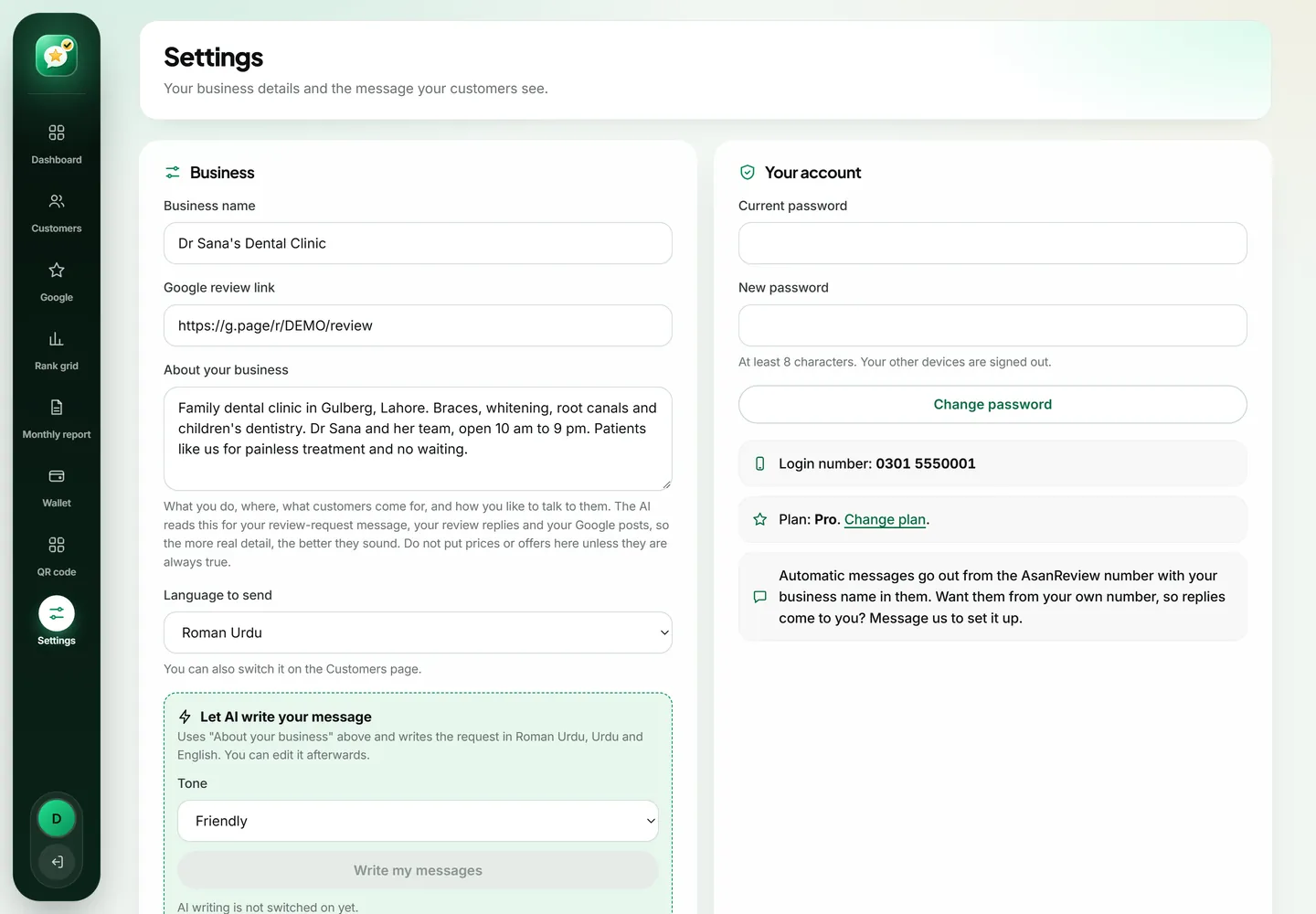
You paste the link once when you create your account. From then on, every message AsanReview prepares carries it, along with the customer's name and your business name. If you ever change it, for example after fixing a duplicate listing, update it in Settings and all future messages use the new one.
Questions people ask
Why can I not see "Ask for reviews"?
You are probably not signed in to the account that manages the profile, or the profile is not verified yet. Verify the profile first.
Does the review link expire?
No. The same link keeps working as long as the profile exists.
Can a customer review without a Google account?
No. Google requires the reviewer to be signed in to a Google account.